
The right sticker artwork resolution keeps logos crisp, text sharp, and colors clean from screen to sheet
Blurry edges and pixelated logos usually trace back to one problem: low-resolution artwork. Before you upload a file for die-cut stickers, sticker sheets, or custom labels, it helps to know exactly what DPI for sticker printing your artwork needs and how sticker resolution changes depending on final size. This guide breaks down PPI, DPI, pixel dimensions, and file formats so your custom stickers print as clean in person as they look on your screen.
DPI vs PPI: What Sticker Resolution Actually Means
DPI (dots per inch) and PPI (pixels per inch) get used interchangeably, but they describe two different stages of the printing process. PPI refers to how many pixels exist in your digital file per inch of image, while DPI refers to how many dots of ink a printer lays down per inch on the physical material. For practical purposes, when you're preparing sticker artwork resolution for print, aim for 300 of either measurement at the final output size. A file that's 300 PPI at a 3-inch width will print sharp as a 3-inch sticker. That same file resized to fill an 8-inch space without adding resolution will look soft and pixelated, because the pixel density per inch has effectively dropped. This is the core reason so many customers get confused: resolution is relative to size, not a fixed number stamped on a file.
Calculating Pixel Dimensions for Your Sticker Size
To hit 300 DPI for sticker printing, multiply your intended sticker dimensions in inches by 300. A 3-inch by 3-inch circle sticker needs a file that's at least 900 pixels by 900 pixels. A 4-inch by 6-inch bumper sticker needs roughly 1200 by 1800 pixels. If you're designing in Procreate, set your canvas to the final inch dimensions with a resolution value of 300 DPI directly in the canvas settings rather than guessing at pixel counts. The same logic applies to Photoshop, Illustrator, or Canva: set the document size in inches first, then confirm resolution is locked at 300. Our size guide lists standard dimensions for popular formats like die-cut shapes, circles, and sheets if you need a reference point before you start designing.
Vector vs Raster Artwork: Which One Do You Need?
Vector artwork (AI, EPS, SVG, or vector PDF) is built from mathematical paths rather than pixels, so it scales cleanly from a business card to a wall decal without any loss in sharpness. This makes vector the preferred format for logos, wordmarks, and simple graphic shapes, especially for die-cut stickers that need a precise cut line around the artwork. Raster artwork (PNG, JPG, TIFF) is made of individual pixels and is the better choice for photographs, painted illustrations, or textured designs with gradients. Raster files are resolution-dependent, meaning they must be created or exported at 300 DPI at the final print size, since you can't add real detail after the fact by simply increasing pixel count in an editing program. If your design mixes both, like a logo over a photo background, export the final composite as a high-resolution PNG at 300 DPI rather than trying to keep every layer editable at final delivery.
Common Resolution Mistakes We See in Sticker Orders
The most frequent issue is pulling a logo straight off a website. Web graphics are almost always saved at 72 DPI because that's all a screen needs, and stretching one of these files up to sticker size exposes soft edges and jagged text immediately. Another common mistake is designing at the wrong physical size in a document, then resizing later in a way that quietly drops the resolution below 300. Screenshots cause similar problems, since they capture whatever resolution your device display uses, not a print-ready standard. If you're unsure whether your file will hold up, run it through our print quality tool before placing an order, or review general file prep steps in our file setup guide. Catching a resolution problem before checkout is faster and cheaper than reprinting after an order ships.
Recommended Pixel Dimensions by Sticker Size
Use this table as a quick reference for print-ready artwork at 300 DPI across common sticker sizes. Multiply width and height in inches by 300 to get the minimum pixel dimensions your file should have.
| Sticker Size (inches) | Minimum Pixel Dimensions (300 DPI) | Recommended File Format |
|---|---|---|
2" x 2" | 600 x 600 px | PNG or vector |
3" x 3" | 900 x 900 px | PNG or vector |
4" x 6" (bumper sticker) | 1200 x 1800 px | PNG or vector |
5" x 5" | 1500 x 1500 px | PNG or vector |
8.5" x 11" (sticker sheet) | 2550 x 3300 px | PNG or layered PDF |
12" x 12" (max die-cut size) | 3600 x 3600 px | Vector preferred (AI, EPS, SVG) |
Sticker Resolution: Common Buyer Questions
- What is a good resolution for a sticker?
- 300 DPI (dots per inch) at the sticker's final printed size is the standard for sharp, professional results. This applies whether you're printing a 2-inch die-cut logo or a full 12-inch decal. Below 300 DPI, fine text and gradients can start to look soft or blocky once printed.
- Is 600 DPI good for stickers?
- 600 DPI will print fine, but it's usually overkill for stickers. Most commercial sticker printing is optimized for 300 DPI, so doubling that resolution mainly increases file size without a visible quality gain to the naked eye. 300 DPI remains the reliable target for print-ready artwork.
- Is 72 or 300 DPI better for print?
- 300 DPI is better for print. 72 DPI is a screen resolution standard built for web and digital display, not physical printing. Artwork saved at 72 DPI will look pixelated once it's printed at actual sticker size, even if it looked sharp on a monitor.
- Do I need vector artwork, or is a high-res photo file okay?
- Either can work, but they serve different purposes. Vector files (AI, EPS, SVG) scale to any size without losing quality, which makes them ideal for logos, text-based designs, and die-cut shapes. Raster files (PNG, JPG, TIFF) work well for photos and detailed illustrations as long as they're saved at 300 DPI at the actual print dimensions, not just a large file size on screen.
- Will low-resolution artwork affect my order or get rejected?
- Our team reviews uploaded files and will flag artwork that appears low-resolution or stretched beyond its native size. To avoid delays, check your file setup and pixel dimensions against our file setup guide before checkout. Catching resolution issues early keeps production on schedule.
Stickers That Reward High-Resolution Artwork
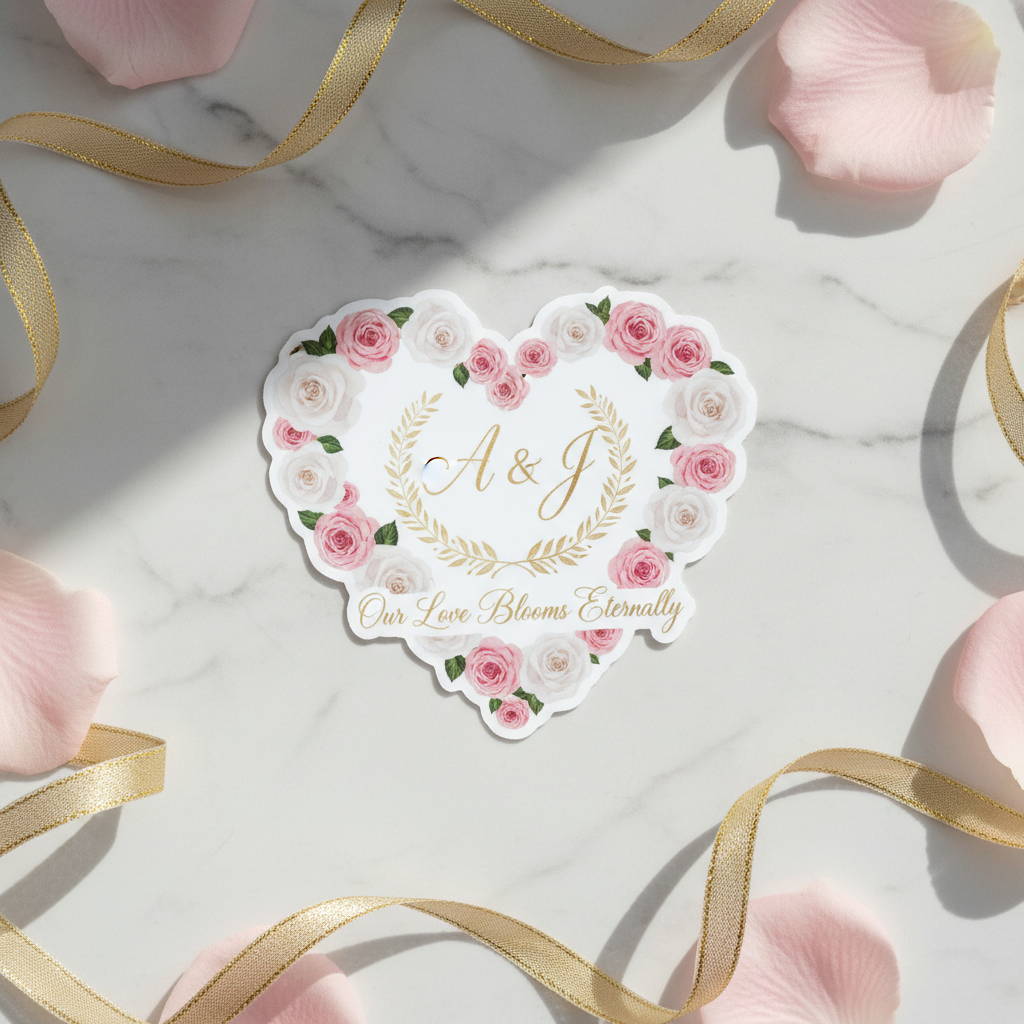
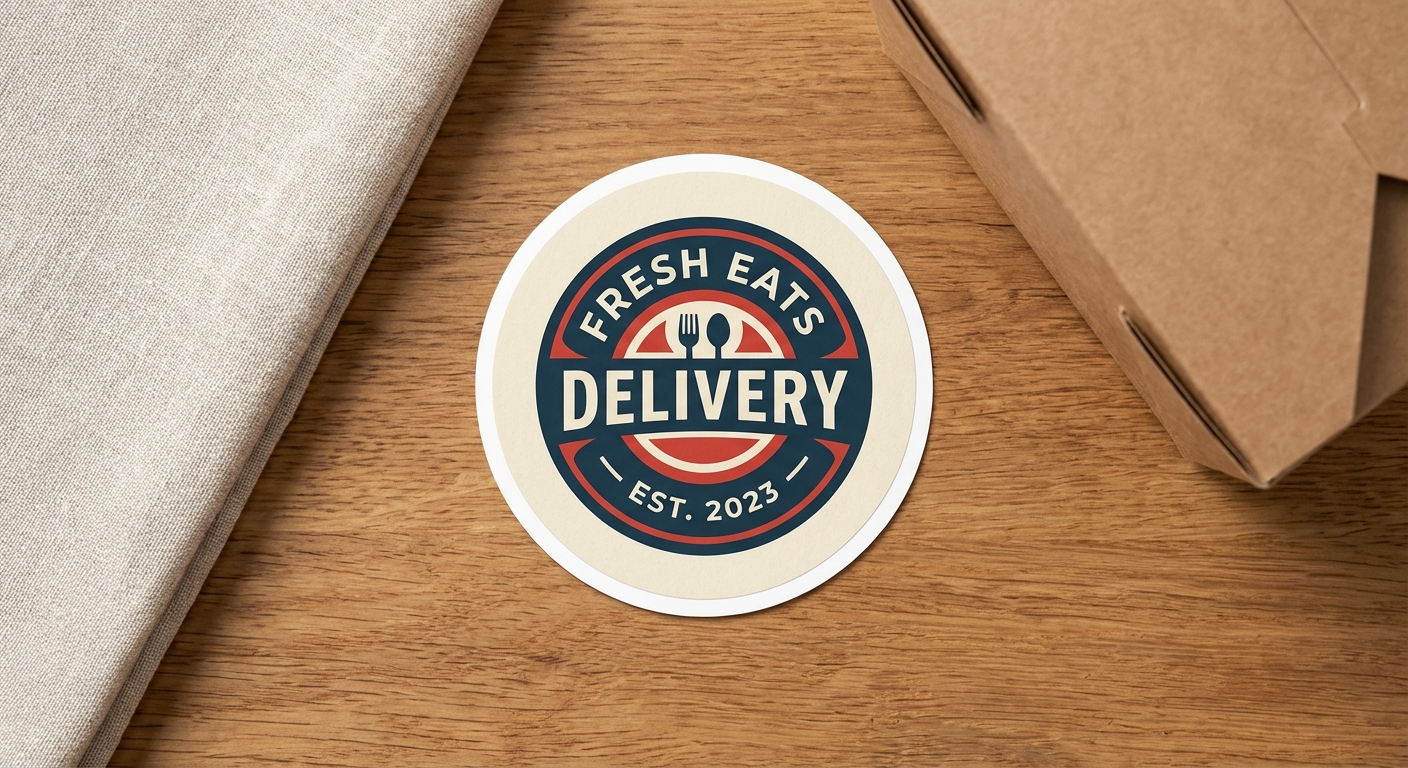
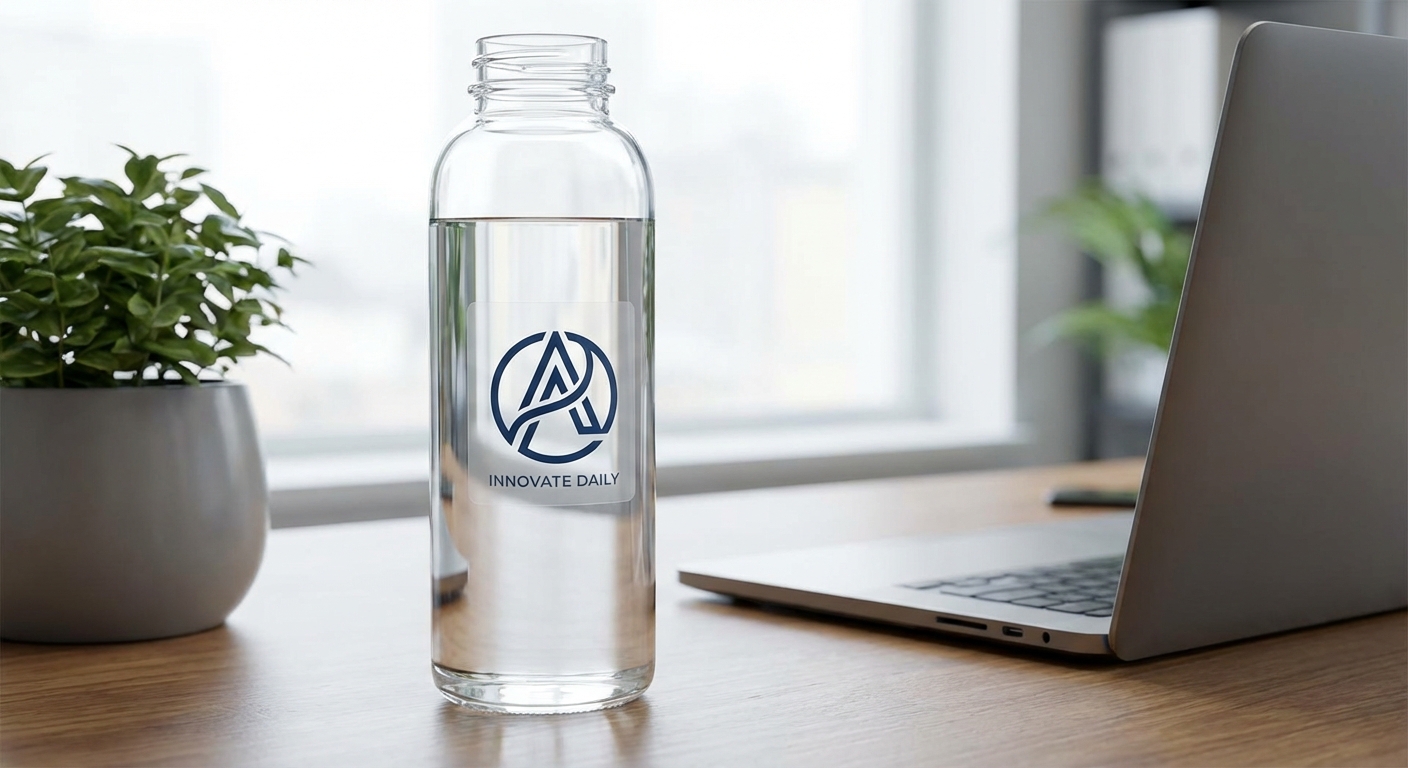
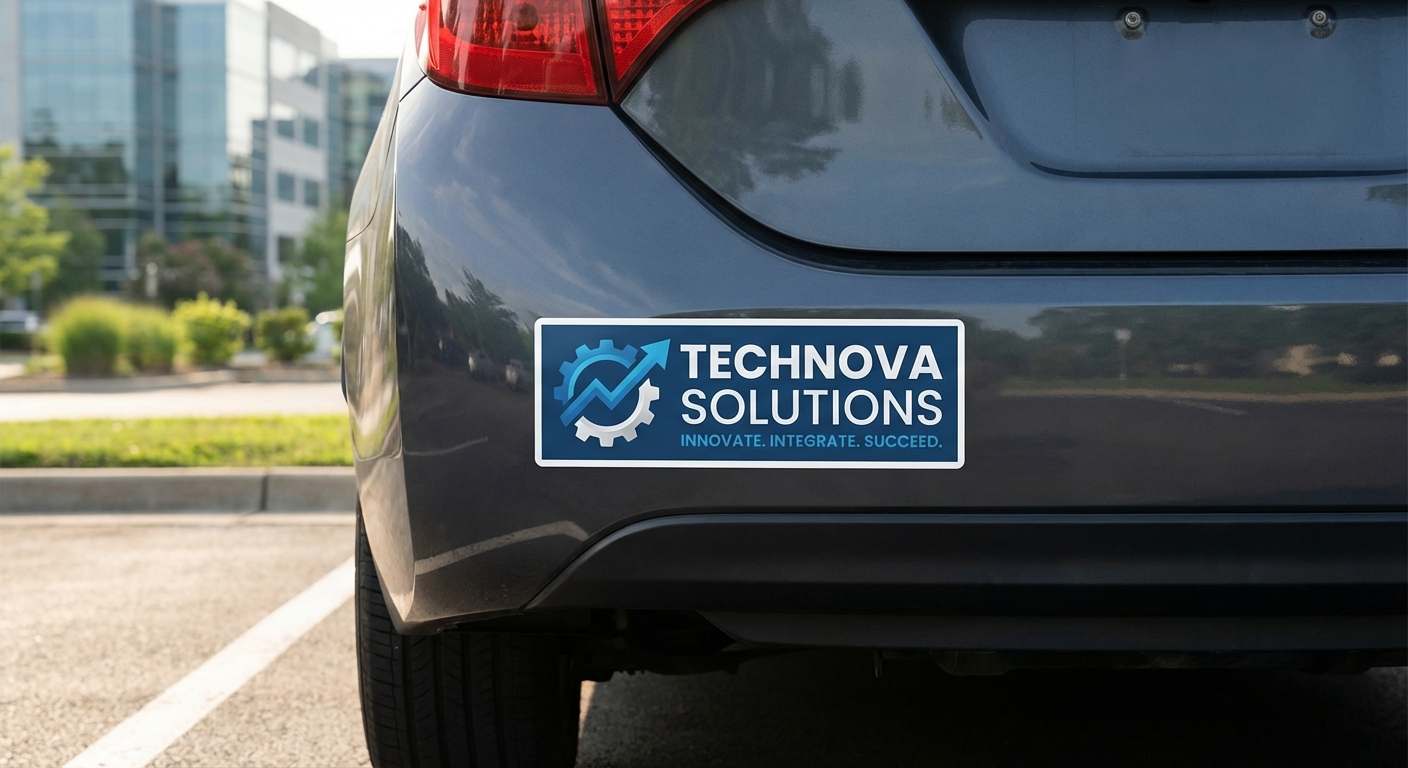
Once your file is set to 300 DPI and sized correctly, these are the formats where sharp sticker artwork resolution makes the biggest visual difference.

Get Your Artwork Print-Ready Before You Order
Run your file through our print quality tool to confirm resolution, or browse the file setup guide for step-by-step prep instructions. Once your artwork checks out at 300 DPI, order your custom stickers and we'll produce and ship them in 3 business days.